How to Read Messages in GBWhatsApp Secretly?
Sometimes, you just want to check a message quietly before deciding how or when to respond. Maybe it’s a casual chat, or a group message that doesn’t need an immediate reply. Opening it right away can sometimes lead to small misunderstandings—people might expect you to answer instantly, even if there’s no real urgency.
With GBWhatsApp, you can read messages secretly without triggering blue ticks or showing your online status. This lets you stay informed, manage your responses on your own schedule, and avoid unnecessary daily stress.
Turning Off Read Receipts
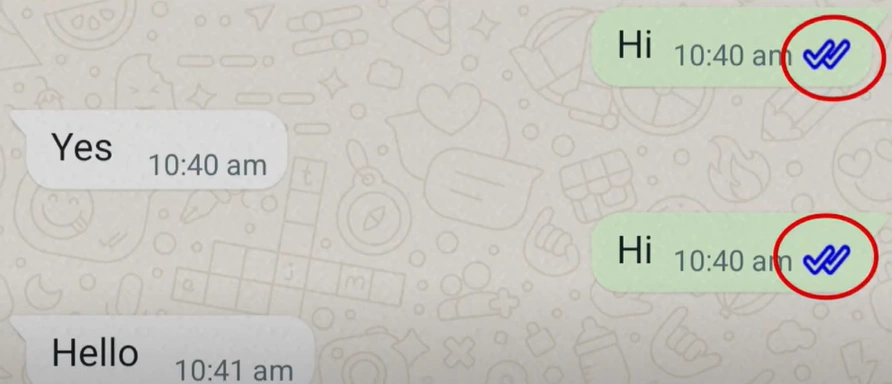
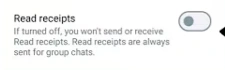
One of the simplest ways to read messages discreetly is to disable read receipts. When this setting is turned off, the blue ticks that indicate you’ve seen a message will not appear, so the sender won’t know you’ve opened it. To do this in GBWhatsApp, go to Settings → Privacy → Read Receipts and toggle the option off. This works effectively for one-on-one chats, giving you the freedom to view messages without alerting the other person. Keep in mind that in group chats, read receipts may still be visible.
Read Messages Secretly in GBWhatsApp Using Airplane Mode
For situations where you want to read messages secretly in GBWhatsApp, you can use Airplane Mode to stay completely discreet. By turning on Airplane Mode before opening GBWhatsApp, the app cannot immediately send read status updates to the WhatsApp server. You can read the messages freely, then close the app completely before reconnecting to the internet. It’s important to note that once you turn Airplane Mode off, the read notifications will attempt to send through your cellular data or Wi-Fi connection.
However, if your phone loses battery, experiences network issues, or is affected by electromagnetic interference before the updates are sent, the read status might not be delivered. While this method is effective for privacy, nothing is completely fail-proof, so use it carefully to maintain discretion.
Hiding Online Status and Freezing Last Seen
GBWhatsApp provides additional tools to manage your visibility. You can hide your online status so that others won’t see when you are active, and you can also freeze your Last Seen to a specific time. This is particularly useful if you want to browse messages without revealing that you are online. To activate these features, go to Settings → Privacy → Hide Online Status and toggle it on, then optionally freeze your Last Seen. Combining these settings with disabled read receipts creates a fully private messaging experience.
Tips for Reading Messages Secretly
- Use notification previews : Read messages directly from your lock screen without opening GBWhatsApp.
- Avoid replying immediately : Give yourself time to respond thoughtfully while maintaining discretion.
- Combine multiple privacy settings : Turn off read receipts, hide online status, and freeze “Last Seen” for maximum privacy.
- Pay attention to details : Small habits, like checking messages carefully, help you manage conversations efficiently while keeping your activity private.
Benefits of Reading Messages Secretly
Reading messages discreetly gives you greater control over your communication. You can check messages at your convenience, respond thoughtfully, and avoid unnecessary misinterpretations or pressure from others. GBWhatsApp’s privacy features make it easy to stay informed while keeping your presence discreet, helping you manage both personal and group conversations smoothly.